
Manufacturing Productivity Hub — Guided Learning
| Getting Started |
PowerMill Migration |
Import Review |
Fusion Library |
Configuration | Community | Support |
| ← Previous | Getting Started · 1.2 Installing MPH |
Next → |
Approximately 5 minutes
Install Manufacturing Productivity Hub and verify the Fusion add-in, ribbon command, and palette are ready to use.
Before you begin
- Autodesk Fusion is installed.
- You have the MPH beta ZIP package.
- Windows is currently required.
MPH installs as a Fusion add-in. Copy the extracted folder into Fusion’s Add-Ins directory, then run the add-in from Fusion.
1. Download and unblock MPH
Download the MPH beta ZIP package provided by Lemoine.
ManufacturingProductivityHub-beta.zipIf Windows displays an Unblock option:
- Right-click the ZIP file and select Properties.
- Enable Unblock.
- Click Apply, then OK.
Don’t see Unblock? Continue to the next step.
2. Copy MPH into Fusion
Extract the ZIP file, then copy the complete Manufacturing Productivity Hub folder into:
%APPDATA%\Autodesk\Autodesk Fusion 360\API\AddIns\Important: Copy the complete MPH folder. Do not copy only its contents or create an extra folder level.
3. Run MPH
In Fusion:
- Open Utilities → Add-Ins, or press Shift + S.
- Open the Add-Ins tab.
- Select Manufacturing Productivity Hub.
- Click Run.
Enable Run on Startup to load MPH automatically whenever Fusion starts.
4. Open Manufacturing Productivity Hub
Once running, MPH adds a command under:
The command is available in both the Design and Manufacturing workspaces.
Select it to open the MPH palette.
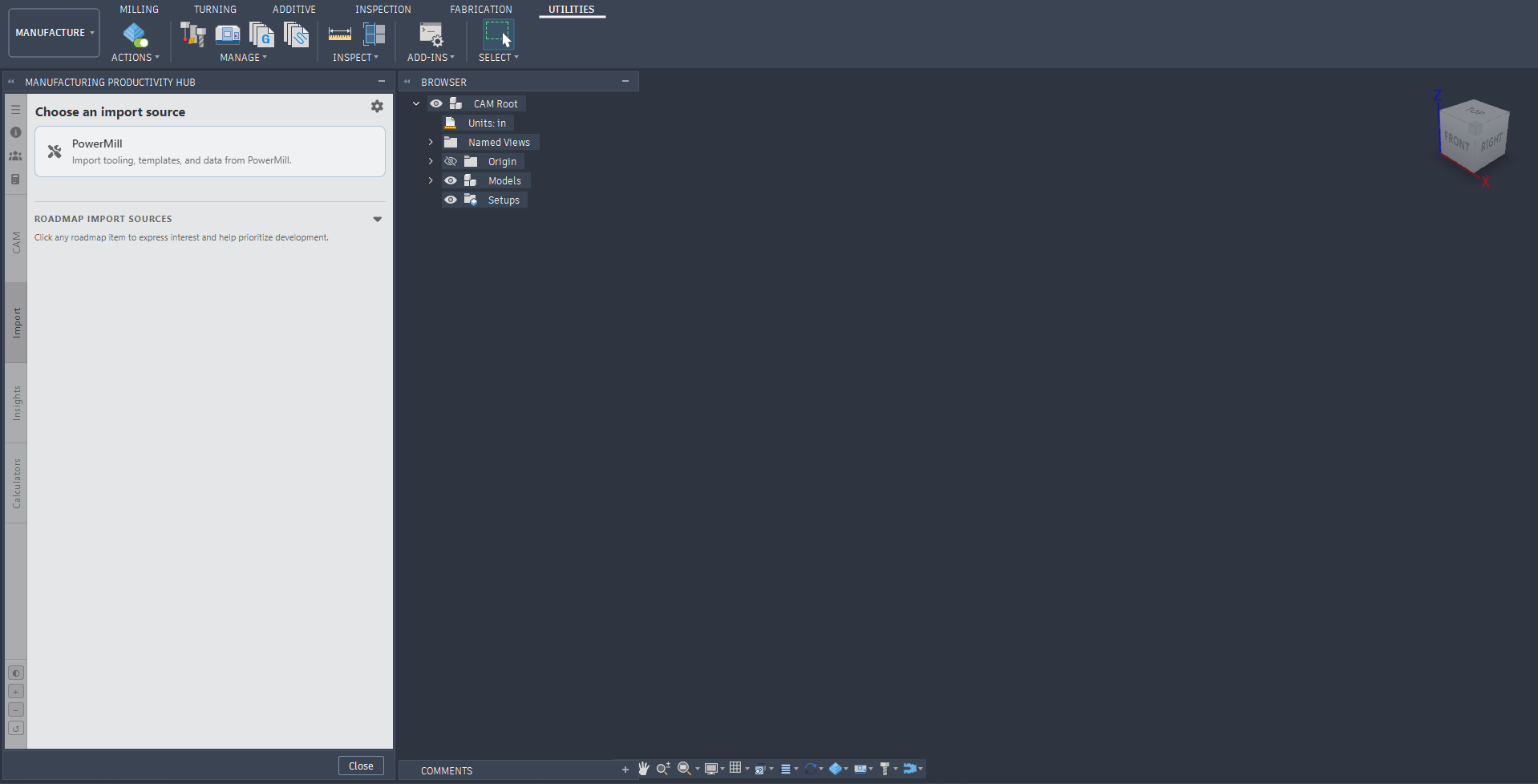
MPH landing page.
Expected result
MPH is installed correctly when:
- Manufacturing Productivity Hub appears in Fusion’s Add-Ins list.
- The MPH command appears under Utilities → Add-Ins.
- Selecting the command opens the MPH palette.
Troubleshooting
MPH is missing from the Add-Ins list
Confirm that the complete MPH folder is located in:
%APPDATA%\Autodesk\Autodesk Fusion 360\API\AddIns\Restart Fusion after correcting the folder location.
MPH does not run
Open the properties for Manufacturing Productivity Hub.dll and enable Unblock if available.
The MPH command is missing
Confirm that MPH is running, then check Utilities → Add-Ins in the Design or Manufacturing workspace. Restart Fusion if necessary.
Still having trouble? Record the installation path, any Fusion error message, and whether MPH appears in the Add-Ins list before contacting support.
With MPH installed, continue to first-launch setup.
|
|